







TeamViewer API
You can access the TeamViewer API documentation here.
Basic Configuration
Configuring the integration within Vivantio requires three main steps, and this is true for most Remote Control Connectivity Software integrations.
- Create a Custom Form to hold the TeamViewer Session Details
- Create an Email Template to send the session details to the customer
- Create the Webhook that allows the technician to create the session
Custom Form
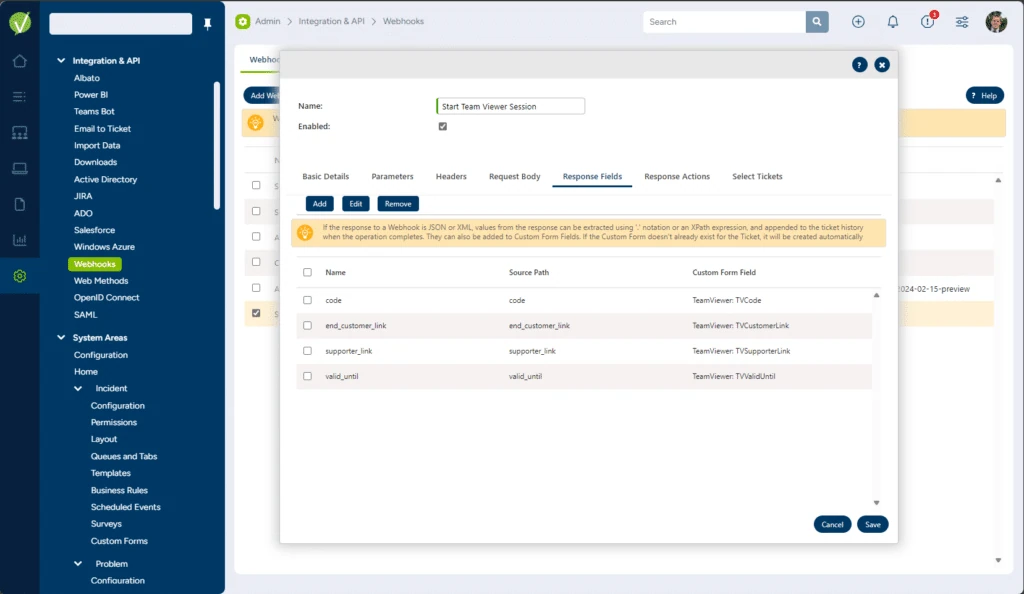
The method in the TeamViewer API gives us back a number of different values and we will need these to be available in Vivantio.
The main value we need is the “end_customer_link” field, but you can also set up fields for:
- code
- end_customer_link
- supporter_link
- valid_until
Begin by logging in to Vivantio and navigating to the relevant system area within the Admin menu. In this example we will select “Incident” so you will go to: Admin>>System Areas>>Incident>>Custom Forms
From there, you can start adding fields and creating a custom form to hold the TeamViewer values
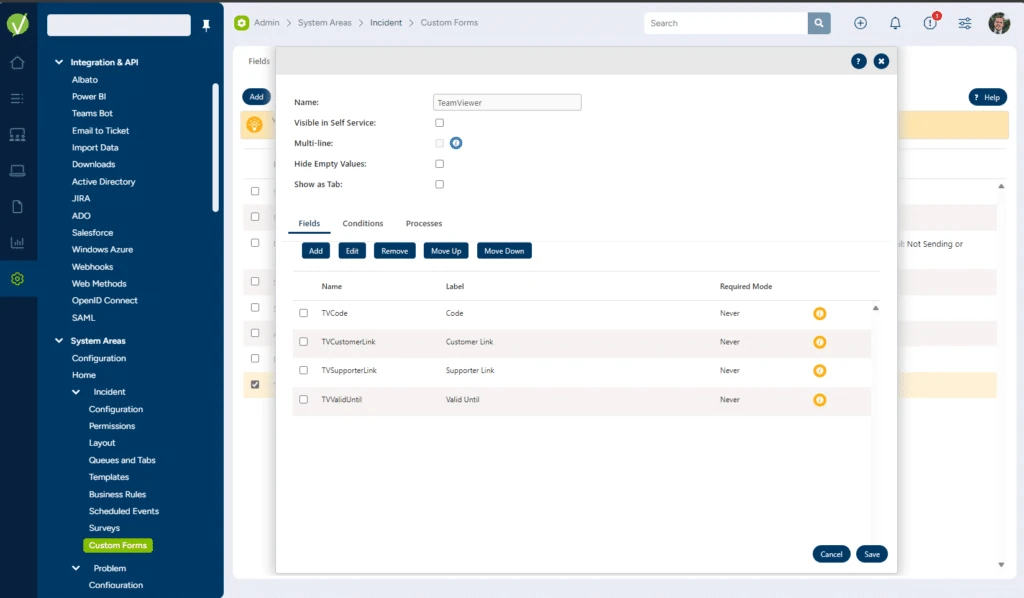
(Note: All of the fields can be created as “Read only” fields as they will be populated by the Webhook and not end users.)
Email Template
In order to create the Email Template that will be sent to your end user when starting a session, navigate to:
Admin » System Areas » Incidents » Templates » External Emails
From there, you can click the “Add” button and enter the email you would like to be sent to your end user.
After saving the email, make sure that the template is available for the “Add Note” process by using the “Action Types” button on the email template list.
Webhook
In order to create the Webhook, navigate to:
Admin » Integration & API » Webhooks
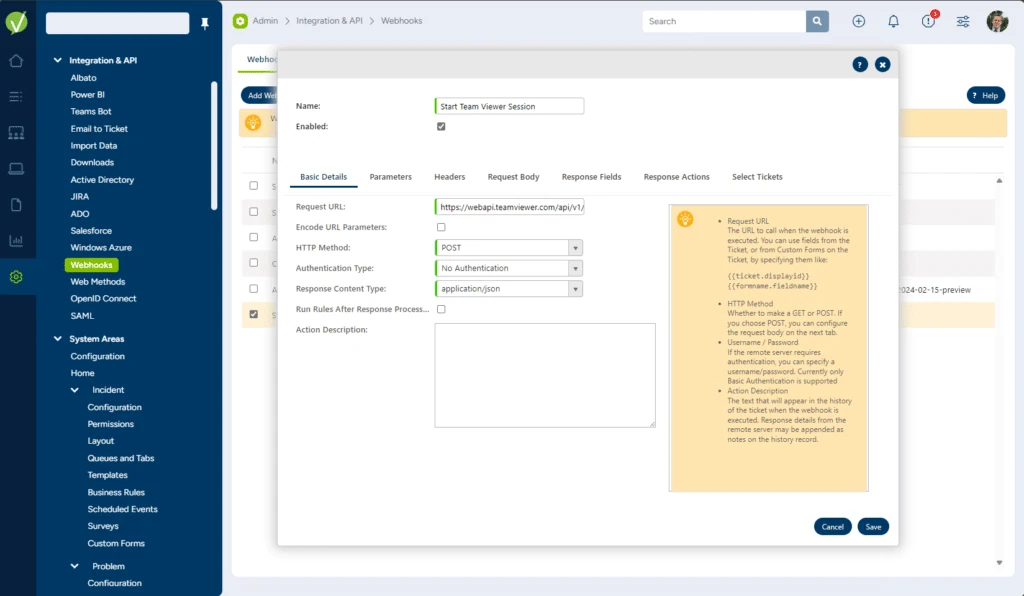
From there, you can click the “Add Webhook” button. You will then choose “Incident” and see the Add Webhook screen. You can name this what you like, but, for our example, we will name it “Start TeamViewer Session”. From there, you will need to fill out a number of tabbed parameters. You can see an example of what that will look like below:
Notes on Specific Fields
Basic Details » Request URL: https://webapi.teamviewer.com/api/v1/sessions
HTTP Method: POST
Response Content Type: application/json
Headers
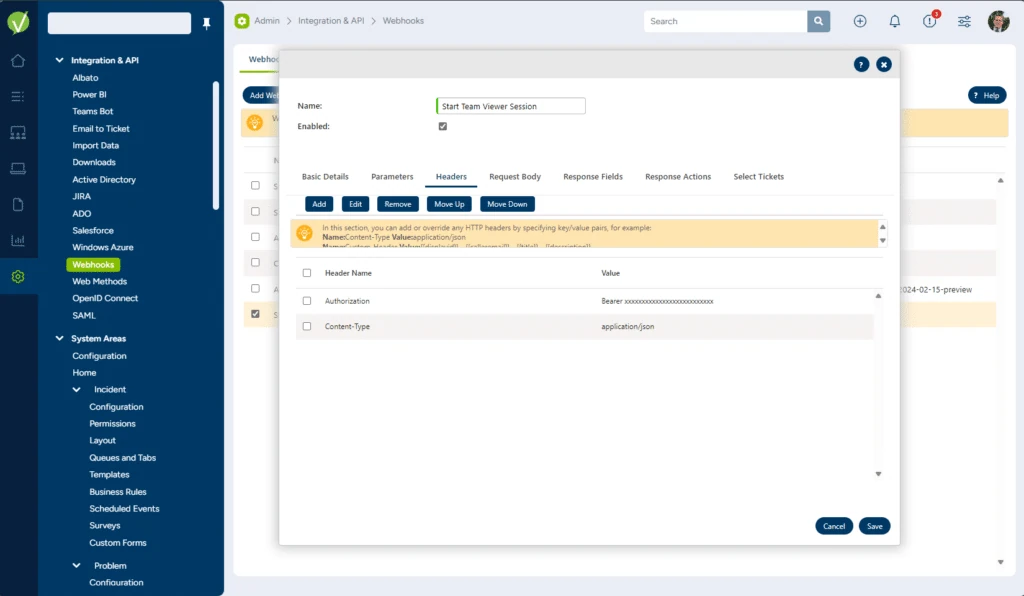
You will also need an Authorisation Token from your TeamViewer account. This can be created via https://www.teamviewer.com/en/global/support/for-developers/
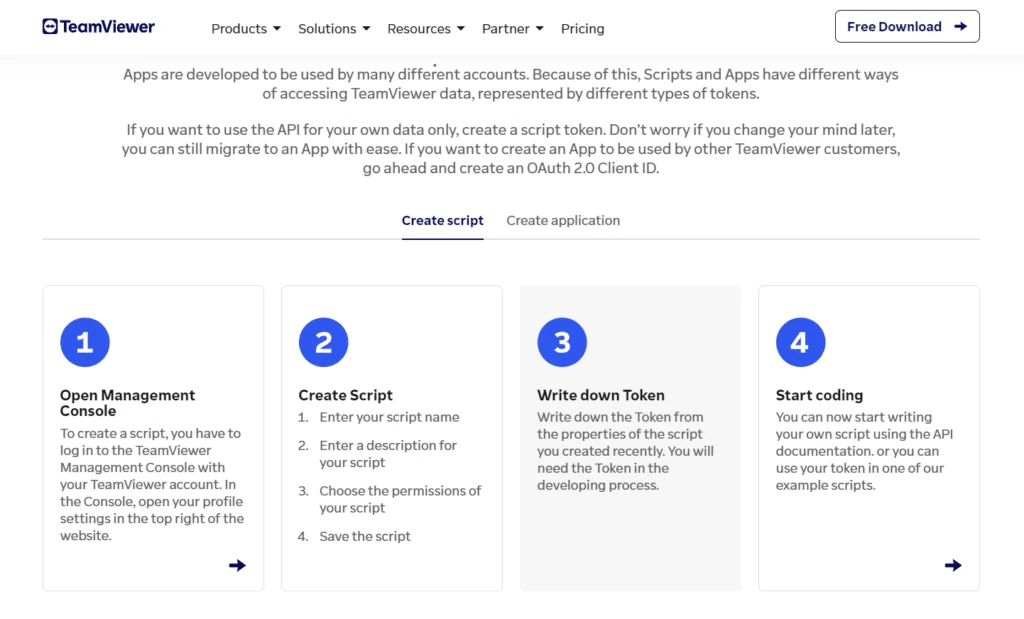
Once you have the Token this, along with the Content Type, need to be added to the Headers that are sent to the TeamViewerAPI.
Response Fields
This tab allows us to extract information from the TeamViewer response and put it in a Custom Form.
Once you have saved your Webhook, select the Webhook on the main Webhook screen and select “Roles.” Add any roles here that you would like to be able to access this integration.
Using the Webhook
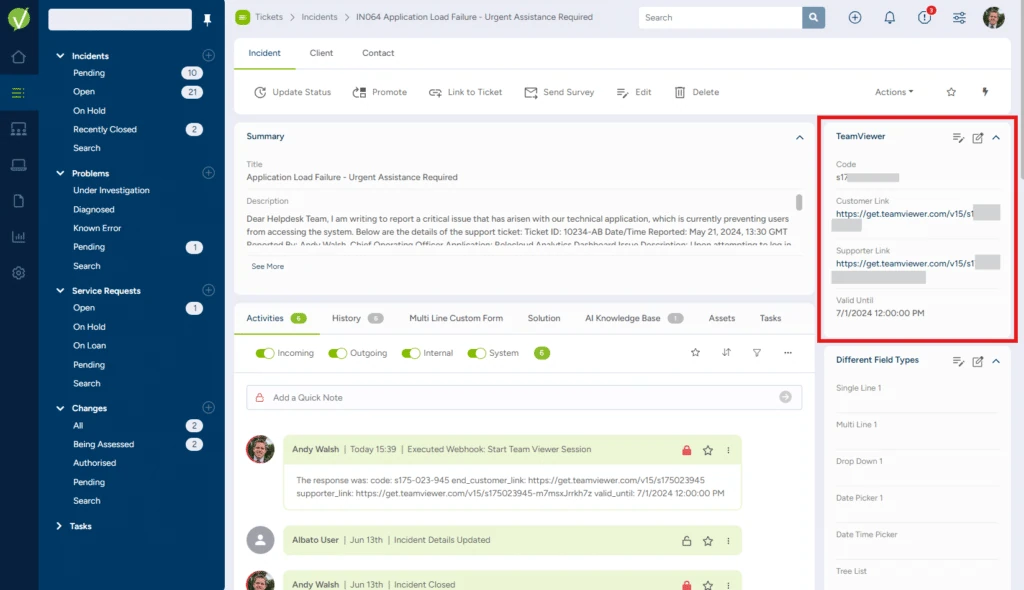
Having completed all of these steps, you should be able to see the “Start TeamViewer Session” link on the Ticket Details page such as in the example below:
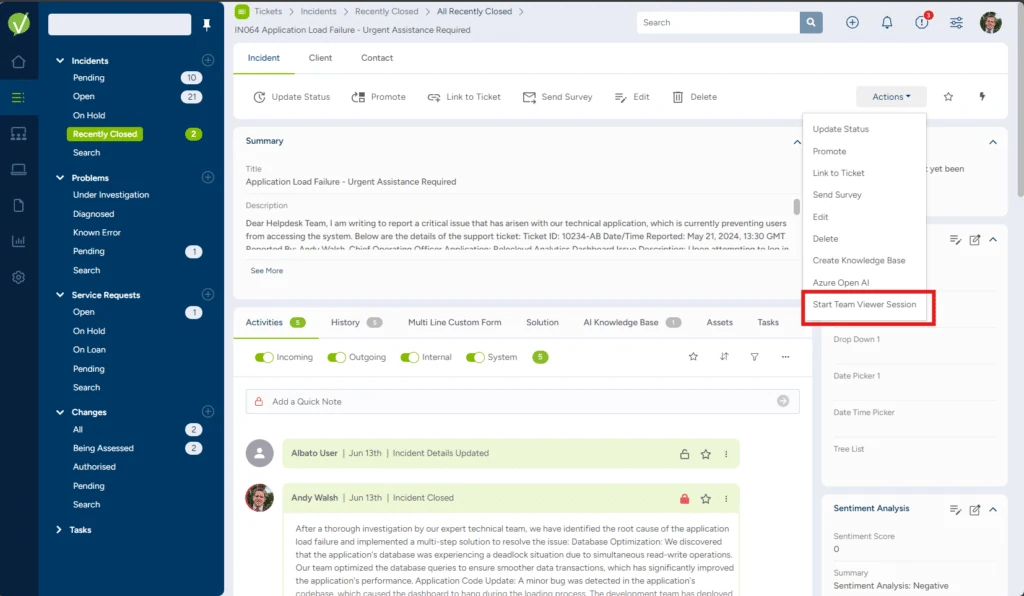
When selecting that option, an email should be sent to your customer, complete with a link to join the TeamViewer session and the TeamViewer details can be viewed on the Custom Form.